Wordfence and Sucuri are excellent security plugins. They scan your site, block threats, and alert you when something's wrong.The problem? Those alerts go to email.Email is where security notifications go to die. They get buried under newsletters, caught by spam filters, or sit unread while you're busy with actual work. By the time you notice …

Wordfence and Sucuri are excellent security plugins. They scan your site, block threats, and alert you when something’s wrong.
The problem? Those alerts go to email.
Email is where security notifications go to die. They get buried under newsletters, caught by spam filters, or sit unread while you’re busy with actual work. By the time you notice a critical alert, hours or days have passed.
The solution is sending alerts where you’ll actually see them — Slack, Discord, Telegram, or any webhook endpoint your team monitors.
This guide starts with free built-in options, then covers automation methods for real-time notifications.
Built-in Email Alerts (Free)
Before adding webhooks, make sure your email alerts are properly configured. This is your baseline — everything else builds on top of it.
Wordfence Email Configuration
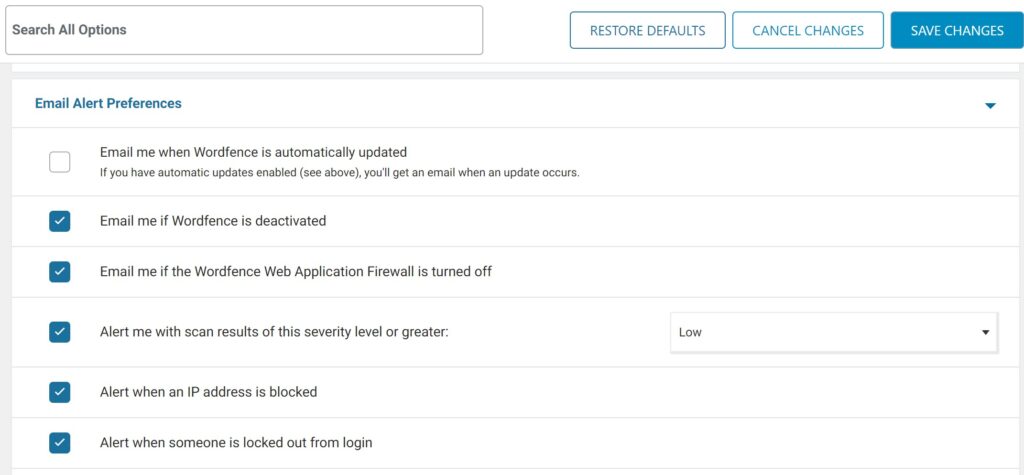
- Go to Wordfence → All Options
- Scroll to Email Alert Preferences
- Set Where to email alerts to an address you actually check
- Enable these alerts at minimum:
- Alert on critical problems
- Alert when an IP is blocked
- Alert when someone is locked out
- Alert when administrator signs in (optional)
Pro tip: Use a dedicated email like security@yourdomain.com that forwards to your main inbox. This makes filtering and automation easier later.
Sucuri Email Configuration
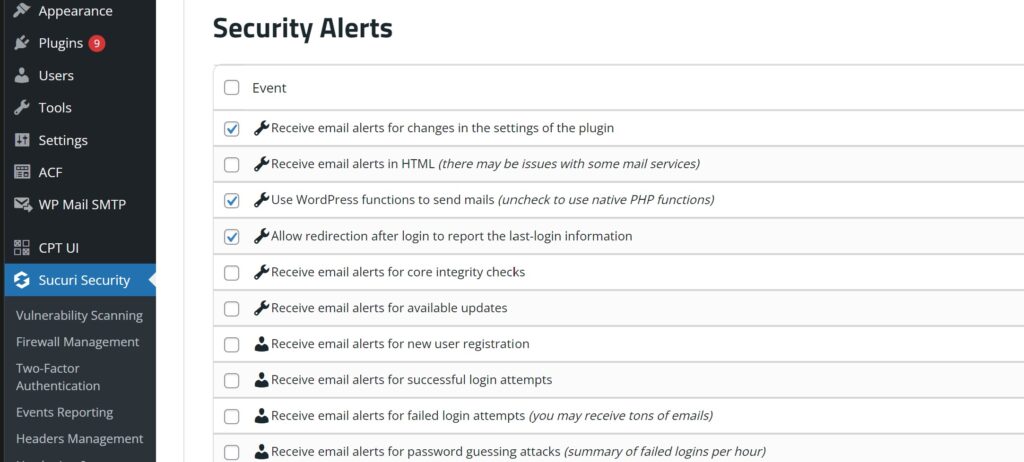
- Go to Sucuri Security → Settings → Alerts
- Enter your alert email address
- Configure alert types:
- Core integrity checks
- Malware detection
- Brute force attacks
- User authentication changes
Improving Email Deliverability
Security emails often land in spam because WordPress uses PHP mail by default, which lacks proper authentication.
Fix this by installing an SMTP plugin:
- WP Mail SMTP (free)
- Post SMTP (free)
- FluentSMTP (free)
Connect to Gmail, SendGrid, Amazon SES, or your host’s SMTP server. This ensures security alerts actually reach your inbox.
Slack Email Integration (Free)
Slack can receive emails and post them as messages. This is the quickest free way to get alerts into Slack without any plugins or code.
Setup
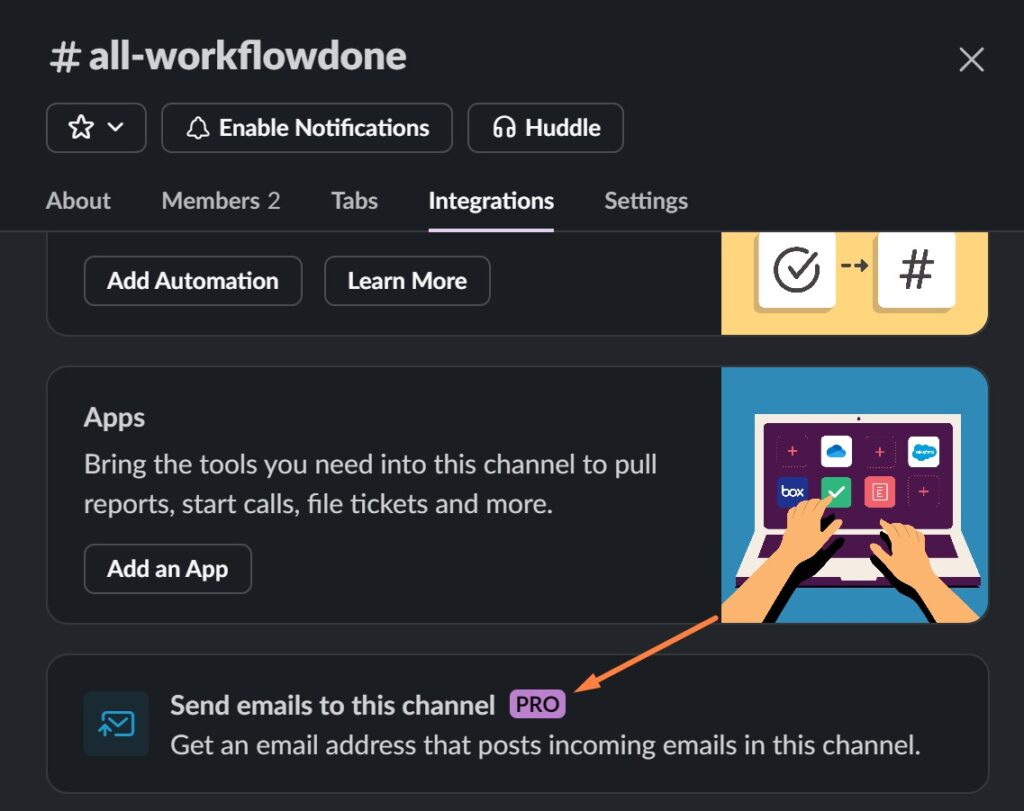
- In Slack, go to your alerts channel
- Click the channel name → Integrations → Send emails to this channel
- Slack generates a unique email address like
abc123xyz@workspacename.slack.com - Copy this email address
- In Wordfence → All Options → Email Alert Preferences, add this Slack email as an additional recipient
- Or in Sucuri → Settings → Alerts, add it to the alert recipients
Limitations
- Formatting is basic (raw email text)
- No color-coding by severity
- Slight delay (email processing)
- Can look cluttered with long alerts
- You need Slack Pro Subscription
But if you have pro subscription it works, it’s free, and it takes 2 minutes to set up.
Discord Email Integration (Free with Bot)
Discord doesn’t have native email integration, but you can use a free bot or automation service.
Option A: Email Forwarding Service
Use a free service like Zapier (100 tasks/month free) or IFTTT:
- Create a Zap: Email → Discord
- Set up a trigger email address in Zapier
- Add that email to your Wordfence/Sucuri alert recipients
- When email arrives, Zapier posts to Discord
Option B: Webhook.site + Discord
For a completely free approach:
- Go to webhook.site and get a temporary URL
- Set up email forwarding from your security email to a service that can POST to webhooks
- Configure Discord webhook as destination
This is hacky but works for testing.
Wordfence Central (Free)
If you manage multiple sites, Wordfence Central provides centralized alerts with Slack integration built-in.
Setup
- Create a free account at wordfence.com/central
- In each site’s Wordfence: All Options → General → Connect to Wordfence Central
- In Central dashboard: Settings → Alert Configuration
- Enable Slack notifications and connect your workspace
What You Get
- All sites’ alerts in one dashboard
- Native Slack integration (formatted properly)
- SMS alerts (limited on free plan)
- Daily digest emails
Limitations
- Only works with Wordfence (not Sucuri)
- Requires account creation and site connection
- Some features require Premium
Why Webhooks Are Better
The free methods above work, but they have drawbacks:
Email to Slack
1-5 Min Delay-
Quick to Setup
-
Poor (raw text)
-
Easy to Use
Zapier/IFTTT
15 min Delay-
Medium Setup
-
Basic Texts
-
Medium Complexity
Wordfence Central
Instant-
Medium Setup
-
Good Formatting
-
Medium Complexity
Direct webhook integration gives you:
- Instant delivery — No email processing delay
- Rich formatting — Color-coded severity, structured fields
- Multiple channels — Slack + Discord + Telegram simultaneously
- Filtering — Choose exactly which alerts to forward
- No third-party dependencies — Works even if Zapier is down
Method 1: Security Webhooks Plugin (Easiest)
The fastest way to get Wordfence and Sucuri alerts into Slack, Discord, or Telegram is with a dedicated plugin.
Security Webhooks intercepts security alerts and forwards them to your notification channels automatically.
Installation
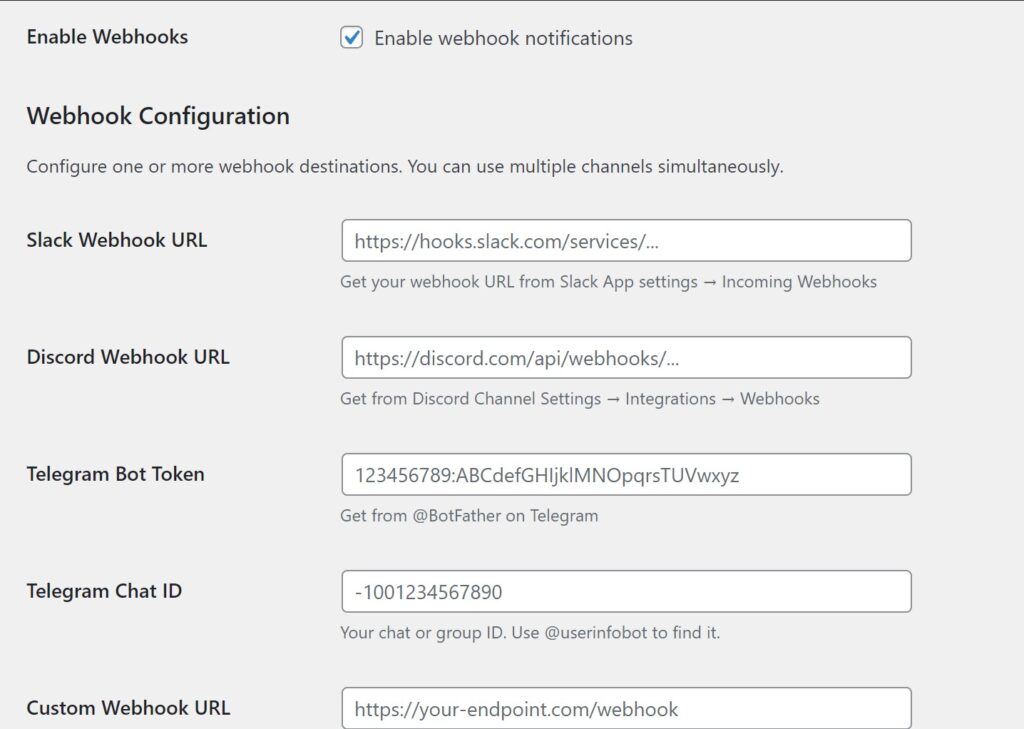
- Download and install the plugin
- Go to Settings → Security Webhooks
- Add your webhook URLs
- Choose which alert types to forward
- Click Save — done
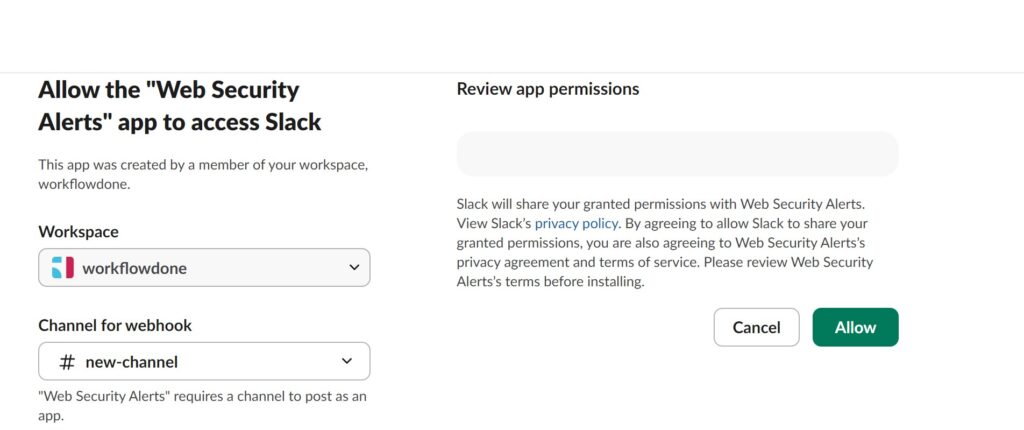
Setting Up Slack
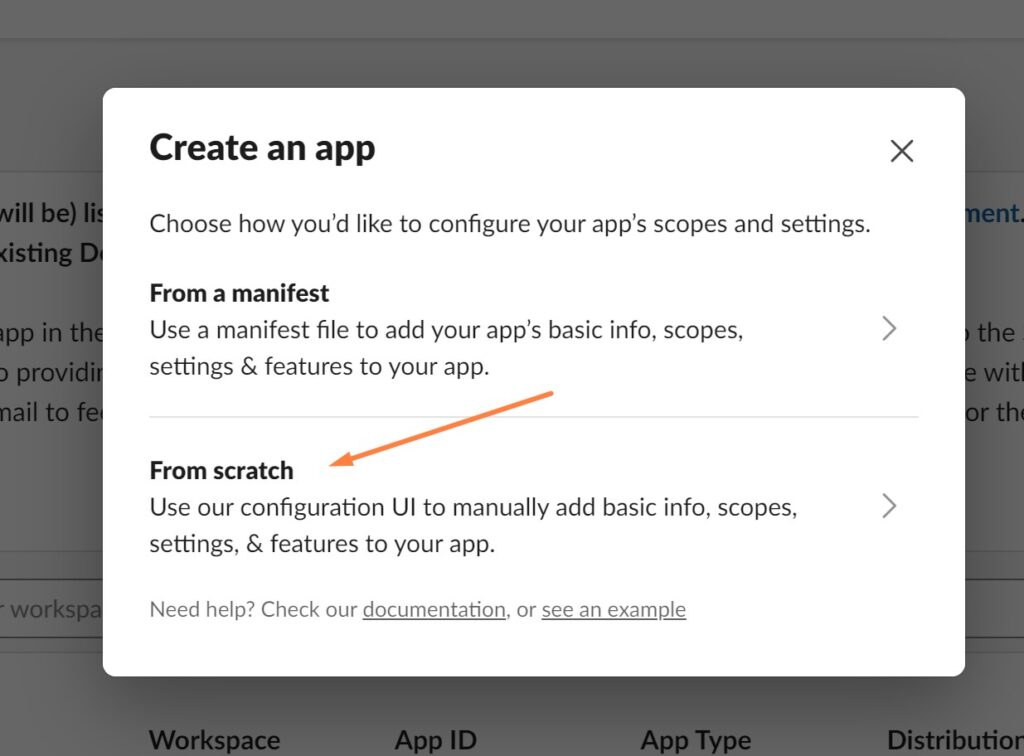
- Go to api.slack.com/apps and click Create New App
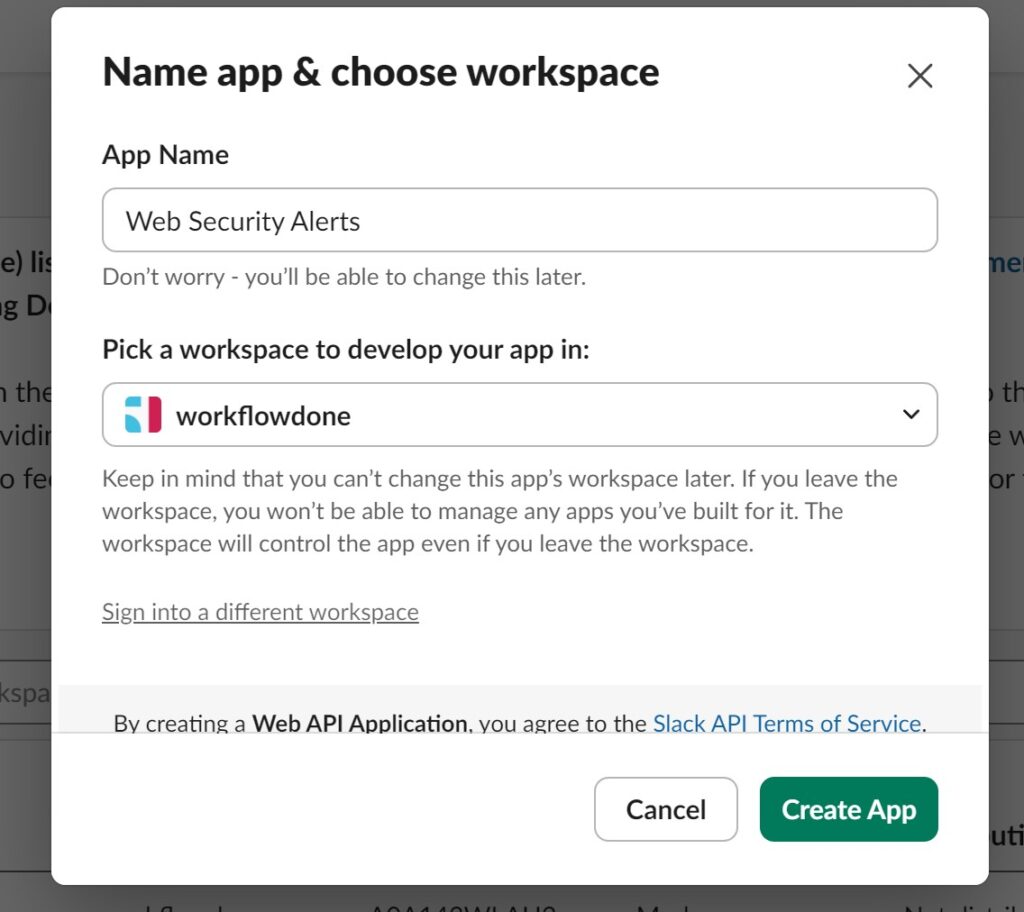
- Choose From scratch, name it “Security Alerts”, select your workspace
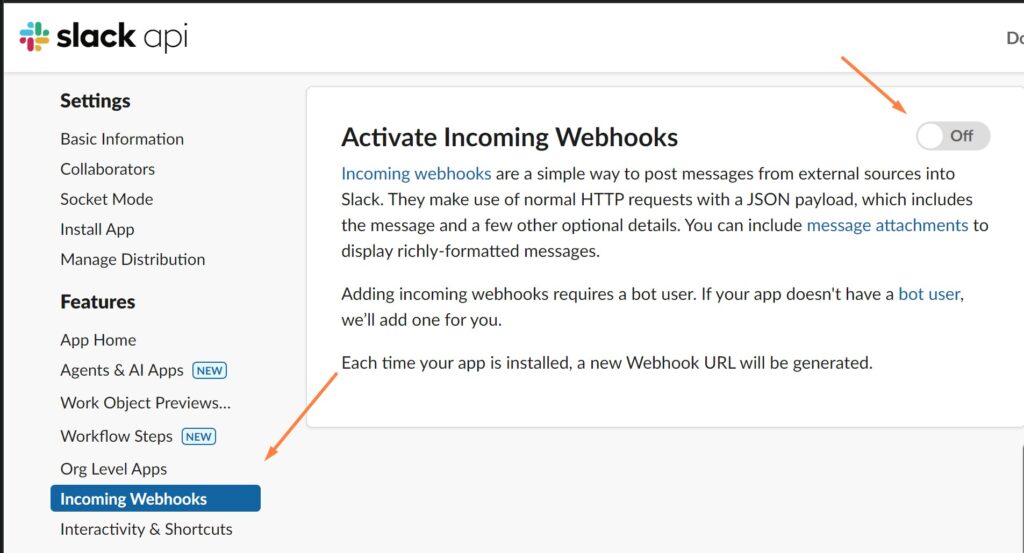
- In the sidebar, click Incoming Webhooks
- Toggle Activate Incoming Webhooks to On
- Click Add New Webhook to Workspace
- Select the channel for alerts (e.g., #security or #alerts)
- Copy the webhook URL
- Paste it into Security Webhooks plugin settings
Setting Up Discord
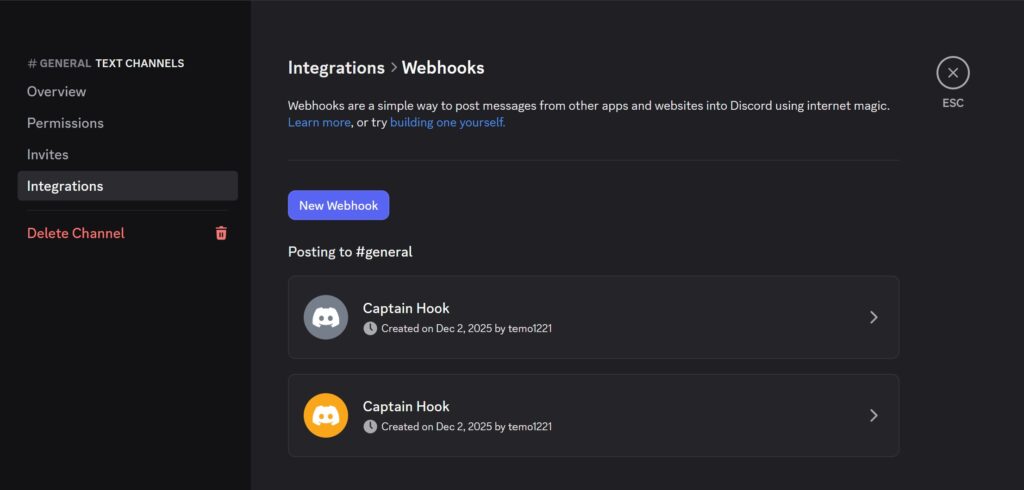
- Open your Discord server
- Right-click the channel for alerts → Edit Channel
- Go to Integrations → Webhooks
- Click New Webhook
- Name it, copy the webhook URL
- Paste it into Security Webhooks plugin settings
Setting Up Telegram
- Message @BotFather on Telegram
- Send
/newbotand follow the prompts - Copy the bot token you receive
- Add your bot to your group/channel
- Message @userinfobot to get your chat ID (or group ID)
- Enter both the bot token and chat ID in plugin settings
Choosing Alert Types
Not every alert needs to ping your phone. The plugin lets you filter:
- Threats & Malware — Always enable. These are critical.
- Lockouts — Useful to see brute force attempts being blocked
- Scan Complete — Optional. Good for confirmation, can be noisy.
- Admin Logins — Enable if you want to track who’s accessing the site
- File Changes — Important for detecting unauthorized modifications
For most sites, enable Threats, Lockouts, and File Changes. Disable Scan Complete and Admin Logins unless you need them.
Testing Your Setup
Click the Test Slack, Test Discord, or Test Telegram button in the plugin settings. You should receive a test notification within seconds.
If it doesn’t work:
- Verify the webhook URL is correct (no extra spaces)
- Check that your Slack app / Discord webhook / Telegram bot has permission to post
- Enable logging in the plugin’s Advanced Settings to see error details
Method 2: Make.com Automation (No Plugin)
If you prefer not to install another plugin, you can route alerts through Make.com (formerly Integromat) using email parsing.
This method works by:
- Wordfence/Sucuri sends email alert
- Email arrives in a dedicated inbox
- Make.com watches that inbox
- When security email arrives, Make.com sends to Slack/Discord
Step 1: Create a Dedicated Email
Create a new email address just for security alerts, like security@yourdomain.com or use a Gmail address.
In Wordfence: Wordfence → All Options → General Wordfence Options → Where to email alerts
In Sucuri: Sucuri Security → Settings → Alerts → Email Address
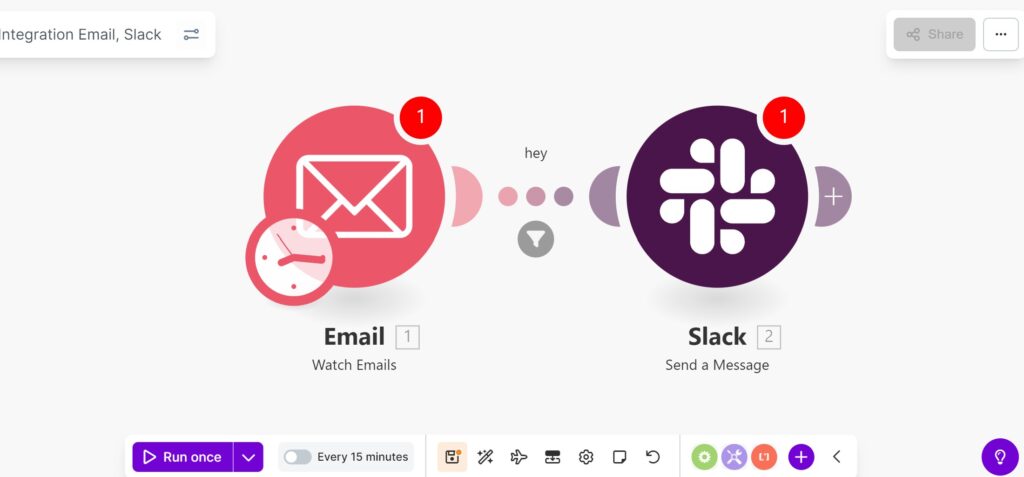
Step 2: Set Up Make.com Scenario
- Create a free Make.com account
- Create a new scenario
- Add Email → Watch Emails module (connect your security email account)
- Add a Filter after the email module:
- Condition: Subject contains
[Wordfence Alert]OR Subject containsSucuri
- Condition: Subject contains
- Add Slack → Send a Message (or Discord/Telegram module)
- Map the email subject and body to your message
Step 3: Format the Message
For Slack, configure the message like:
					🔒 *Security Alert*

*Subject:* {{subject}}

*Details:* {{body_plain}}

*Time:* {{date}}
Limitations of This Method
- Slight delay (depends on email polling interval)
- Requires maintaining a Make.com scenario
- Free tier limited to 1,000 operations/month
- Email parsing can break if alert format changes
Method 3: Custom PHP Webhook (Developer Option)
For full control, you can write a simple PHP script that hooks into WordPress’s email system and forwards security alerts to webhooks.
The Code
Create a file in your theme’s functions.php or a custom plugin:
					<?php
/**
 * Forward Wordfence and Sucuri alerts to Slack
 */
add_filter('pre_wp_mail', 'forward_security_alerts_to_slack', 10, 2);

function forward_security_alerts_to_slack($null, $atts) {
    $subject = $atts['subject'] ?? '';

    // Check if this is a security alert
    $is_wordfence = stripos($subject, 'Wordfence') !== false;
    $is_sucuri = stripos($subject, 'Sucuri') !== false;

    if (!$is_wordfence && !$is_sucuri) {
        return null; // Not a security email, let it send normally
    }

    // Determine severity
    $emoji = 'ℹ️';
    $color = '#17a2b8';

    if (stripos($subject, 'problem') !== false || stripos($subject, 'threat') !== false) {
        $emoji = '🚨';
        $color = '#dc3545';
    } elseif (stripos($subject, 'locked') !== false || stripos($subject, 'warning') !== false) {
        $emoji = '⚠️';
        $color = '#ffc107';
    }

    // Send to Slack
    $slack_webhook = 'https://hooks.slack.com/services/YOUR/WEBHOOK/URL';

    $payload = [
        'attachments' => [
            [
                'color' => $color,
                'title' => $emoji . ' Security Alert',
                'text' => $subject,
                'footer' => home_url(),
                'ts' => time()
            ]
        ]
    ];

    wp_remote_post($slack_webhook, [
        'body' => json_encode($payload),
        'headers' => ['Content-Type' => 'application/json'],
        'timeout' => 15
    ]);

    return null; // Let the original email still send
}
For Discord
Replace the Slack payload with:
					$discord_webhook = 'https://discord.com/api/webhooks/YOUR/WEBHOOK';

$payload = [
    'embeds' => [
        [
            'title' => $emoji . ' Security Alert',
            'description' => $subject,
            'color' => hexdec(ltrim($color, '#')),
            'footer' => ['text' => home_url()],
            'timestamp' => gmdate('c')
        ]
    ]
];

wp_remote_post($discord_webhook, [
    'body' => json_encode($payload),
    'headers' => ['Content-Type' => 'application/json'],
    'timeout' => 15
]);
For Telegram
					$bot_token = 'YOUR_BOT_TOKEN';
$chat_id = 'YOUR_CHAT_ID';

$text = $emoji . " *Security Alert*\n\n" . $subject . "\n\n🔗 " . home_url();

wp_remote_post("https://api.telegram.org/bot{$bot_token}/sendMessage", [
    'body' => [
        'chat_id' => $chat_id,
        'text' => $text,
        'parse_mode' => 'Markdown'
    ],
    'timeout' => 15
]);
Limitations of Custom Code
- You maintain it — if Wordfence changes email format, you fix it
- No admin UI for configuration
- No test buttons
- Need to handle cooldowns manually to avoid spam
Comparison: Which Method Should You Use?
Security Webhooks Plugin
15 Minutes Setup
$
19
One time
-
Easiest Setup
-
Works Offline
-
Does not need Maintenance
-
Alert filtering (Built-in)
-
Test Buttons
-
Spam Prevention (built-in)
Make.com Setup
30 Minutes Setup
$
10
Monthly Subscription
-
Medium Setup
-
Needs make.com
-
Does not need Maintenance
-
Manual Filters
-
No Test Buttons
-
Manual Spam Prevention
Custom PHP Script
30 Minutes Setup
$
0
Free
-
Complex Setup
-
Works Offline
-
You maintain code (Developer Friendly)
-
No Filters
-
No Test Buttons
-
Manual Spam Prevention
Recommendation:
- Most users → Security Webhooks plugin. Set up once, forget about it.
- Already using Make.com → Add it to your existing automation stack.
- Developers who want full control → Custom code approach.
Best Practices for Security Notifications
Don’t Over-Notify
Getting pinged for every failed login attempt will make you ignore notifications entirely. Start with critical alerts only (threats, malware, lockouts), then add more if needed.
Use a Dedicated Channel
Don’t send security alerts to #general. Create #security-alerts or similar. This keeps alerts visible without disrupting other conversations.
Set Up Mobile Notifications
Make sure your Slack/Discord/Telegram app is configured to notify you for messages in your security channel. The whole point is seeing alerts quickly.
Review Weekly
Even with notifications working, do a weekly dashboard check. Some issues might not trigger email alerts but still need attention.
Test Regularly
Send a test notification monthly to confirm your webhooks still work. Slack apps can get disconnected, Discord webhooks can be deleted, Telegram bots can be removed from groups.
Wrapping Up
Email alerts from security plugins are better than nothing, but they’re not enough for serious security monitoring. Webhook notifications put alerts where you’ll actually see them.
The fastest path is the Security Webhooks plugin — five minutes to set up, works with Wordfence and Sucuri free versions, sends to Slack, Discord, Telegram, or any custom endpoint.
If you prefer building it yourself, the Make.com or custom code approaches work too. What matters is that you actually see security alerts when they happen, not hours later buried in your inbox.

Temo Berishvili
Founder of Workflowdone.com